

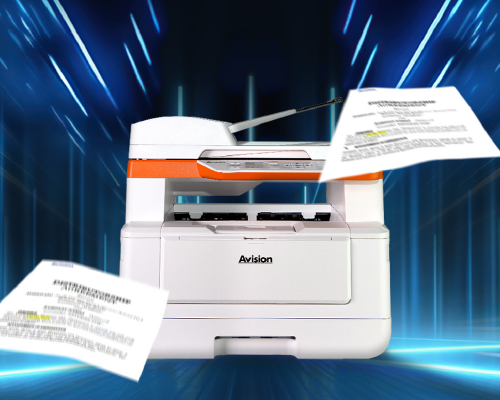
AM4021w

Print, Copy, E-mail, and Scan with the Avision AM4021w MFP

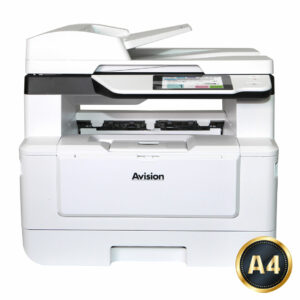
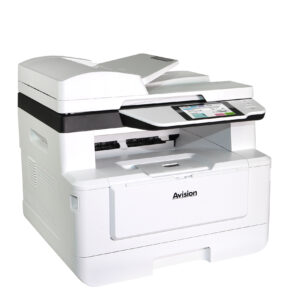
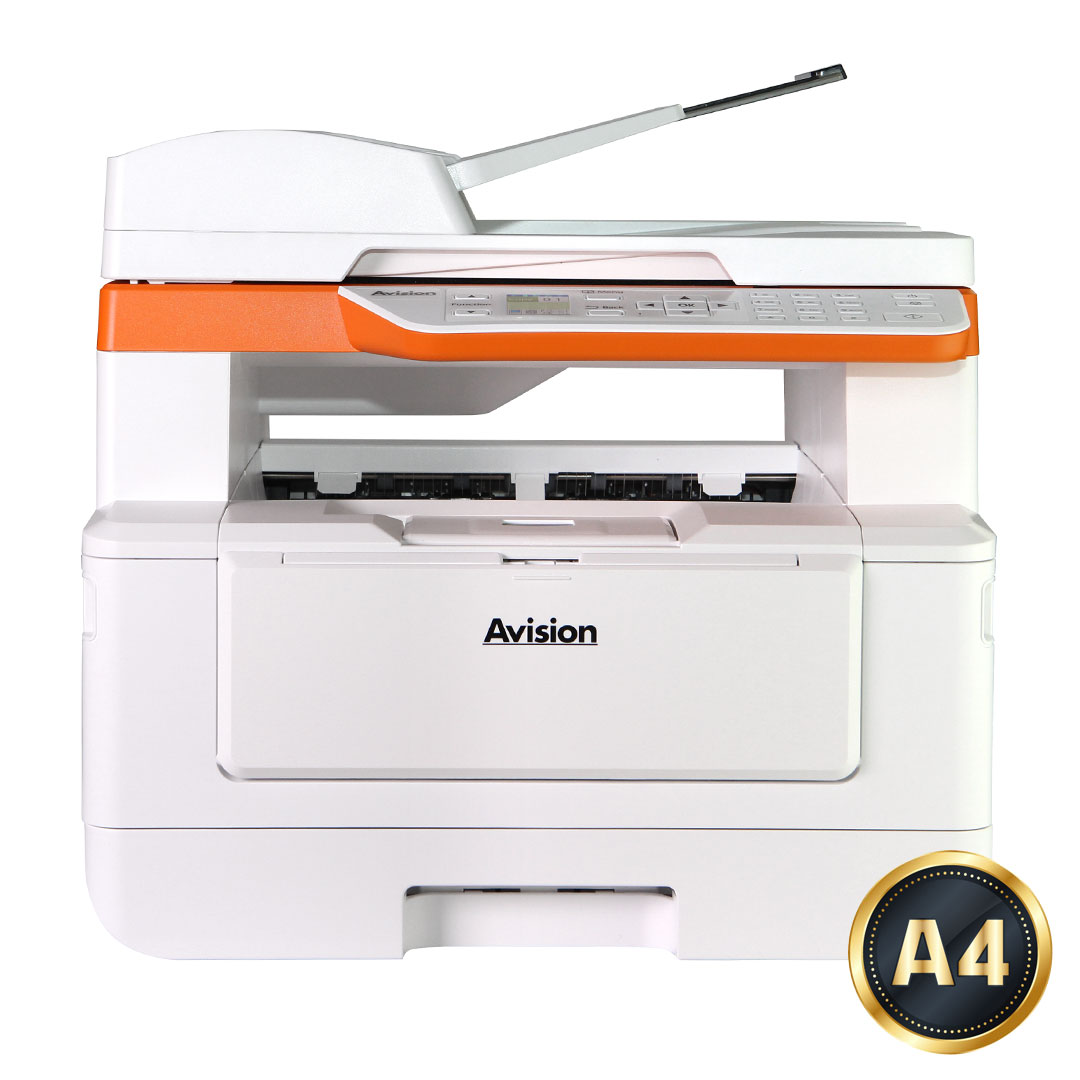
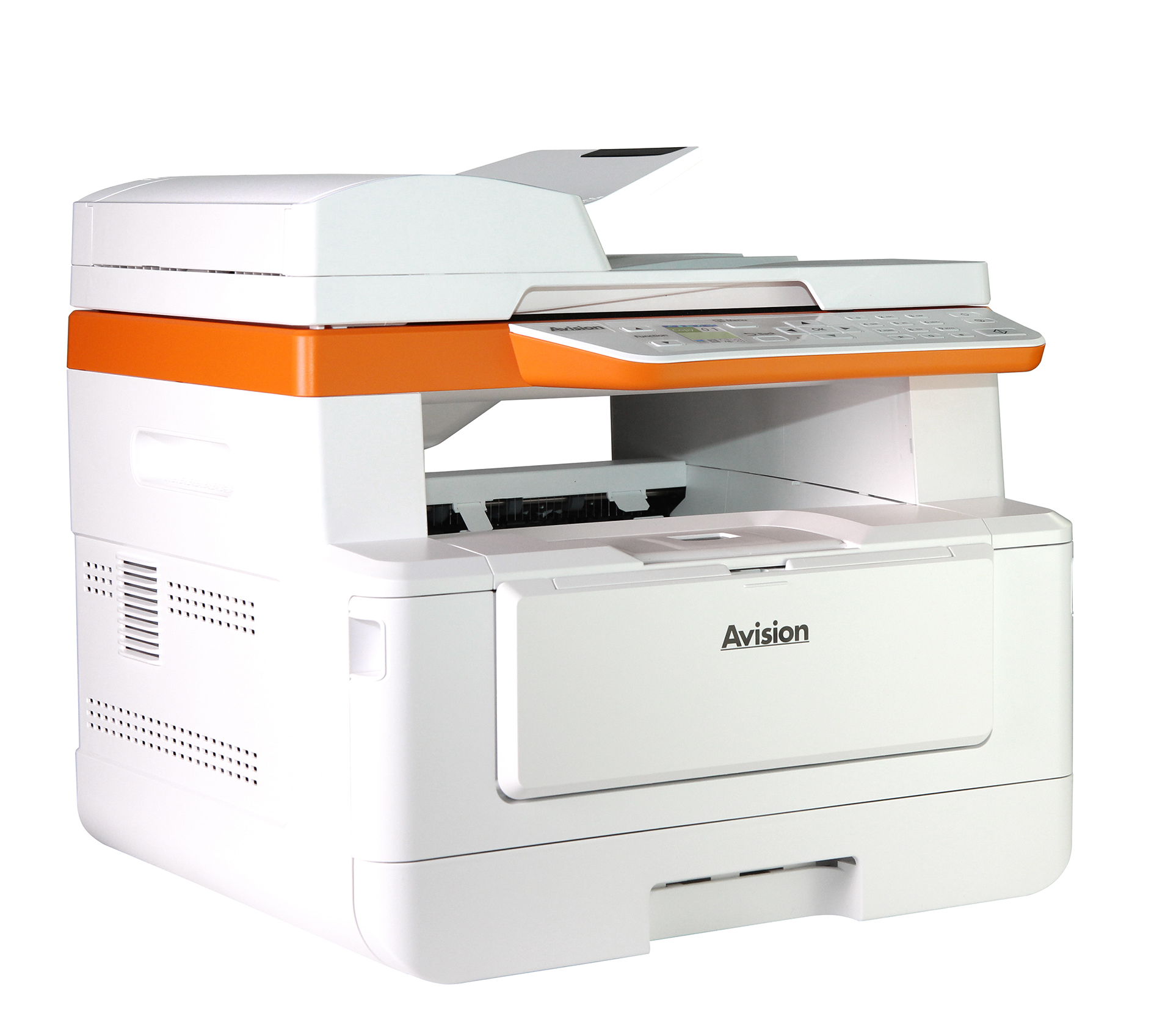
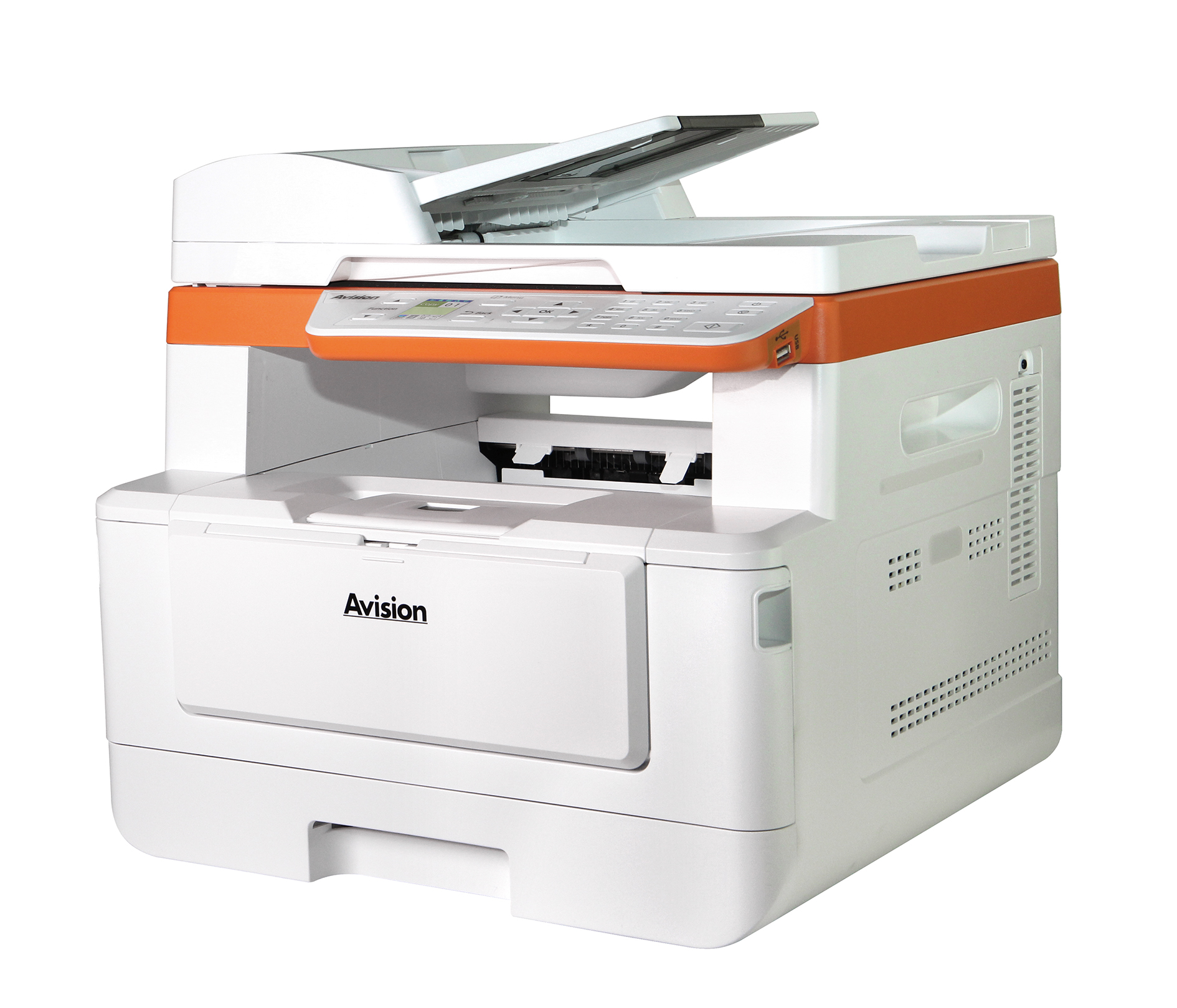
We’ve taken the office-critical features of our departmental MFPs and packed them into this ultra-productive LEGAL-size printer. It seamlessly integrates print, scan, e-mail, and copy functionalities. Plus, the product can be connected to the computer through a wired or wireless network. All these features are operated through a clear and large LCD screen to simplify work for busy offices with high-volume of document distribution.

Product Details


P1

▍Fast, High-Quality Printing & Copying

Produce professional black and white output at impressive copy speeds of up to 40 pages per minute. And print up to 40 pages per minute.

▍Print First Page in 5.9 Seconds

Get your work done in less time with this ultras-fast and efficient printer that can deliver a first page in as little as 5.9 seconds.


▍Clear, & Easy-to-use LCD Screen

Easy to read and navigate, 1.7-inch, bright color LCD screen guides you through even the most complex operations. Simply make a few presses on the control panel, your document can be digitized and distribute within seconds.


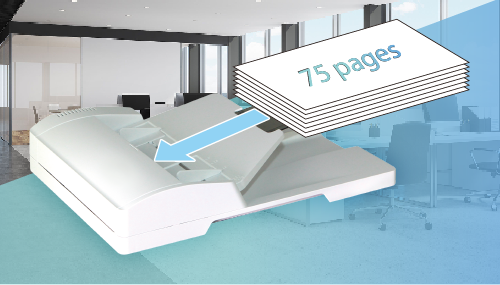
▍­75-Sheet Auto Document Feeder

With the 75-page auto document feeder, the product captures single-sided documents in a single pass at speeds of up to 36 ppm, making it perfect for scanning and copying multi-page, one-sided business documents.

P2

P3

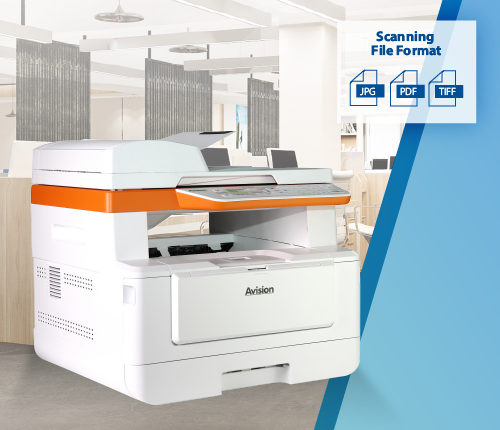
▍Advanced scanning capabilities

The product lets you scan paper-based documents in full color in PDF, JPEG, or TIFF file format and send them to a variety of destinations such as E-mail, FTP, USB and network folder (SMB).


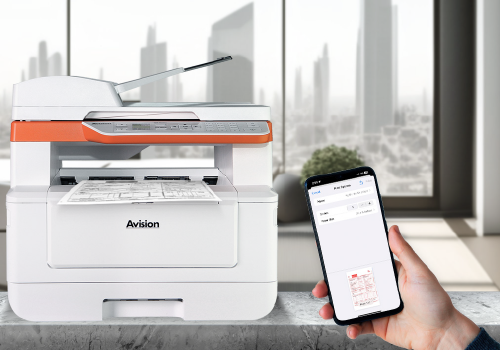
▍Convenient Mobile Printing

The product is able to connect to your mobile devices wirelessly and supports Android Mopria or iOS AirPrint. Simply download the corresponding app, you can complete printing through your mobile devices and enjoy the convenience and benefit of wireless transmission!


P4


AM40A_S5

▍Remote Device Management through Embedded Web Page

The product provides a convenient way to view the supplies status of printer cartridge, scan count, and copy count to help you maintain the product well. By simply typing the machine’s IP address in the URL field of your browser, the product’s embedded web page will be prompted.


▍Features

  • Duplex Versatility: Two sided printing, and copying
  • Print and copy at up to 40 cpm (A4 LEF) in black and white
  • First print/copy output time < 5.9 seconds
  • Scan in color up to 1200 dpi optical resolution
  • Full A4 platen glass allows you to scan A4-size document with ease
  • Scan to and print from USB for files on the go
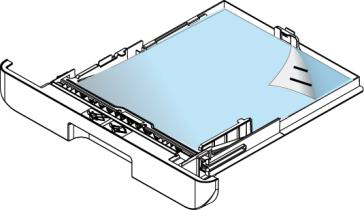
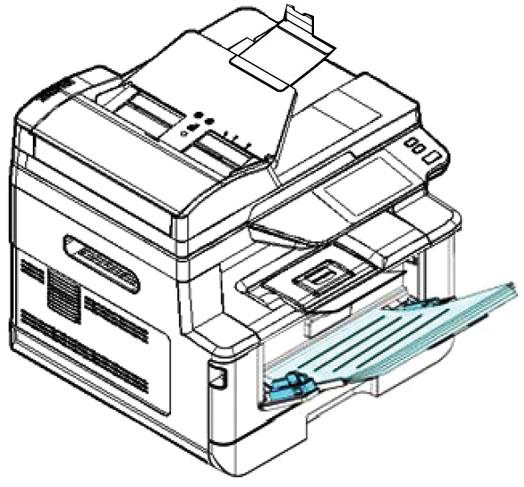
  • 250-sheet standard or optional tray plus 50-sheet multipurpose tray
  • Remote device management through embedded web page
  • User-friendly 1.7” FLF LCD screen for easy operation
  • 75-sheet Duplex Automatic Document Feeder scans one-sided documents in sizes up to legal size


Specification

General Specification
CPU

1GHz

RAM

512 MB

Display

1.7 in. TFT LCD

Paper input

Face down(Main tray),Face up(Manual tray)

Paper output capacity

150 Pages(70 g/m² , plain paper)

Duplex printing unit

Automatic

Connectivity

USB 2.0, Wi-Fi (Built-in), 10/100/1000 Base-T Ethernet

Power source

100-120 VAC, 50/60 Hz, or 220-240 VAC, 50/60 Hz

Dimensions (WxDxH)

404 x 380 x 366 mm ( 15.9 x 14.9 x 14.4 in. )

Weight

10.7 kg (23.6 lb)

Acoustical Noise

Operating:68 dB, Standby:45 dB

Software Driver Support

Win 10, Win 8, Win 7, Win 11

Main tray
Paper capacity

250 pages (70 g/m² plain paper )

Paper size

A4, A5, A6, B5(JIS), Letter, Legal, 76 x 152 mm

Paper weight

60 to 120 g/m²

Manual tray
Paper capacity

60 Pages ( 70 g/m²,Plain Paper )

Paper size

A4, B5(JIS), A5, A6, letter, Legal, 76 x 127 mm to 216 x 356 mm

Paper weight

60 ~ 163 g/m2

Scan Function
ADF Scan Speed

36 ppm

Technology

CMOS-CIS

Light Source

LED

Scanning Mode

Color Scanning

Document feeding mode

Flatbed + Document Feeder

Optical resolution

1200 x 1200 dpi

Output Resolution (dpi)

300/600/1200

Grayscale mode

16-bit input 8-bit output

Color mode

48-bit input 24-bit output

File Formats

Color file : JPEG, M-PDF, PDF, TIFF;Gray file : JPEG, M-PDF, PDF, TIFF;B/W file : M-PDF, PDF, TIFF

ADF Minimum

76 x 127 mm

ADF Maximum

216 x 356 mm ( Legal )( 8.5 x 14 in. )

Flatbed Maximum

216 x 297 mm ( 8.5 x 11.7 in )

ADF Capacity

75 Pages (70 g/m²,Plain Paper)

Paper Weight

60 ~105 g/m²

Scanning features

Scan to USB / Scan to FTP / Scan to E-mail / Scan to SMB

Print Function
Printing Speed

40ppm (A4) / 42ppm (Letter)

Maximum media size
Legal

Minimum media size

76 x 127 mm

Resolution

1200 x 1200 dpi

PDLs/Emulations

GDI, PCL

First print output time

< 5.9 s

N-up Print

2-in-1, 4-in-1, 9-in-1,16-in-1

Scaling

25 ~ 400 %, Fit to Paper

Duplex print

Booklet, Calendar

Print features

Collate / Network Print

Copy Function
Copy Size

Legal, Letter, A4, A5

Max media size

ADF:216 x 356 mm ; Flatbed:216 x 297 mm

Min media size

76 X 127 mm

Copy Speed

40 ppm (A4) / 42 ppm (Letter)

Copy Count

99

Copy Mode

Text / Mix

Zoom

25 % ~ 400 %

N-up Copy

2-in-1 / 4-in-1 / ID card

Copy features

Duplex Copy / Collate / Toner Save mode / ID Copy

Consumables
Toner Cartridge

3,000 pages, 6,000 pages, 9,000 pages, 12,000 Pages

Drum Unit

30,000 sheets

Recommanded Monthly Print Volumn

Up to 6,000 pages

Maximum Monthly print Duty cycle

60,000 pages

* The above specifications may vary due to computer performance and sales regions. For further details, please consult your local distributor.

▎Product Photos

200
High resolution Medium resolution Low resolution
24.35 MB 1.01 MB 362.81 KB
DownloadDownloadDownload

▎User Manual

VersionSizeLink
简体中文12.61 MBDownload
繁體中文12.67 MBDownload
Deutsch7.57 MBDownload
English11.95 MBDownload
Español7.45 MBDownload
Français7.34 MBDownload
Italiano7.22 MBDownload
Português12.95 MBDownload
Русский13.67 MBDownload

▎Brochure

VersionSizeLink
简体中文6.73 MBDownload
繁體中文6.73 MBDownload
English6.59 MBDownload

▎Quick Guide

VersionSizeLink
Multiple Languages2.00 MBDownload
Multiple Languages1.25 MBDownload

▎Drivers

NameVersionSizeOS SupportLink
A4MQ SeriesCertified100.38 MBWin 7 , Win 8 , Win 10 , Win 11Download

*If there are any issues with the Latest Driver, please download the certified version or contact us at service@avision.com.tw for assistance.

NameVersionSizeOS SupportLink
MFP Mac Driver2026061835.36 MBmacOS10.12~10.15 ,macOS11 Big Sur ,macOS12 Monterey , macOS13 Ventura ,macOS14 Sonoma ,macOS15 Sequoia , macOS26 TahoeDownload

▎Instruction

  • User Check

    1. Check if proper paper type has been selected in printer driver.

  • This error occurs when the printer requests information from the DHCP server and DHCP server does not respond.

    User Check

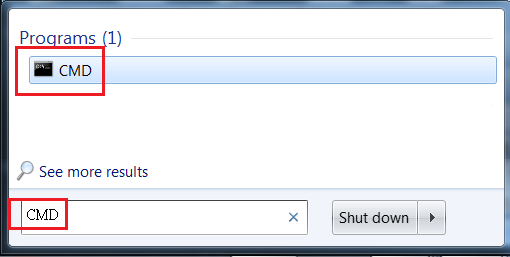
    1. Search the CMD and launch on your PC.

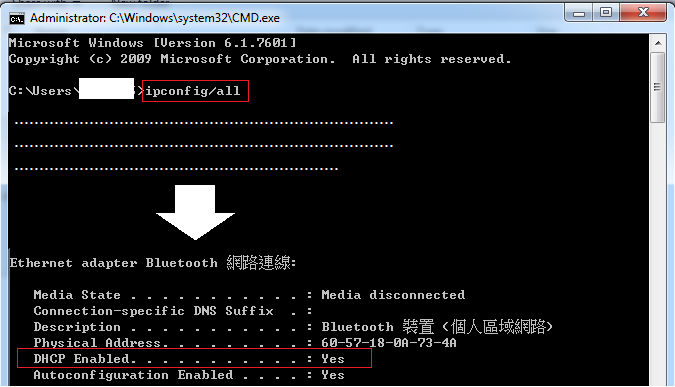
    2. key-in inconfig/all to check whether the DHCP server work in advance.


    3. Contact to IT person to check the DHCP server setting.

  • There are two or more device using the same IP in the same one LAN area.

    User Check

    1. Please reset the fixed IP address, or contact to IT person to check the router setting.

  • User Check

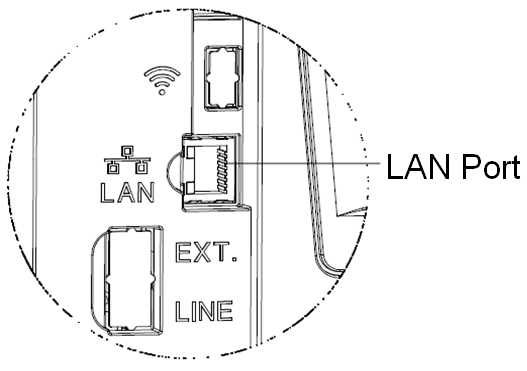
    1. Please plug the ethernet cable.
    2. If it still happen, test this cable on others devive to ensure this cable work, or not, try with another cable.

▎Hardware Related

  • User Check

    1. Clean the charge wire or the power grid of the drum unit.
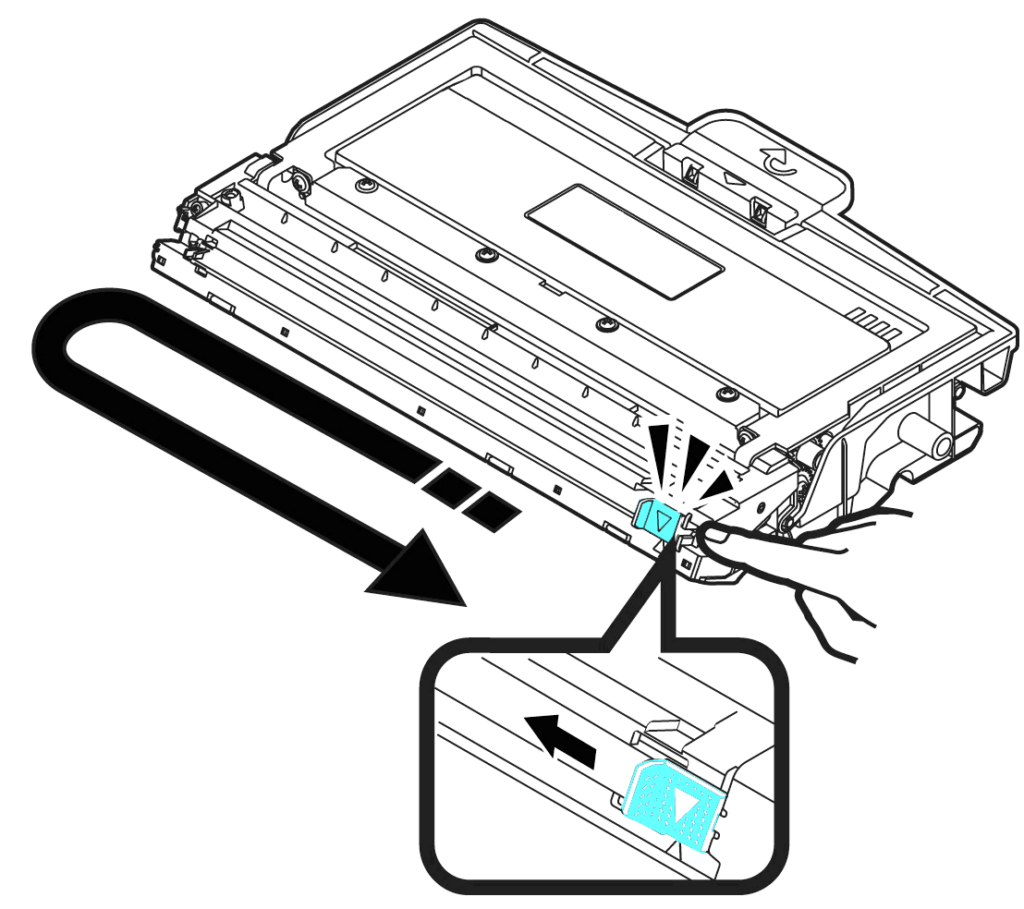
    Slide the charge wire to the end and then back to the original place. Repeat this for at least 3 times

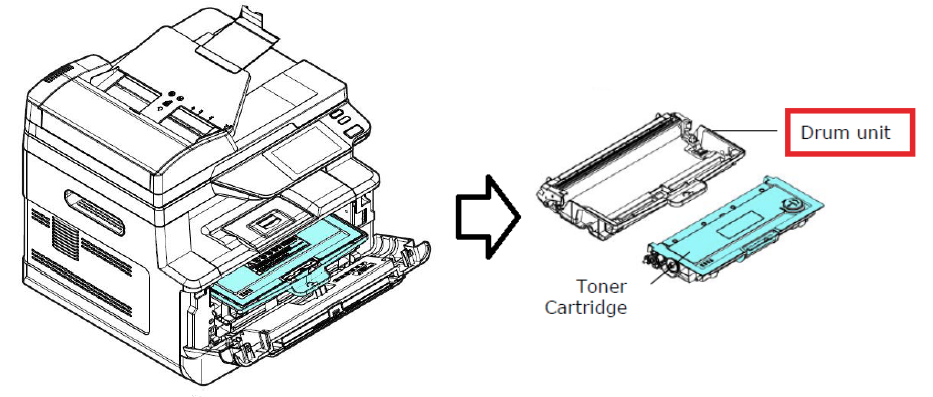
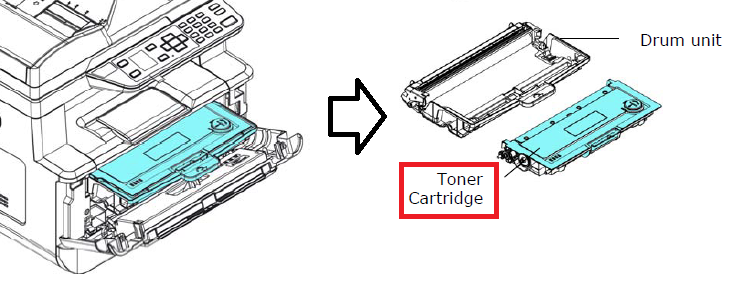
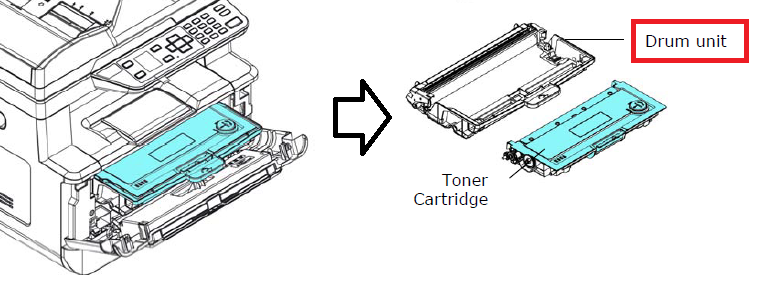
    2. Replace drum unit. <Video Link>

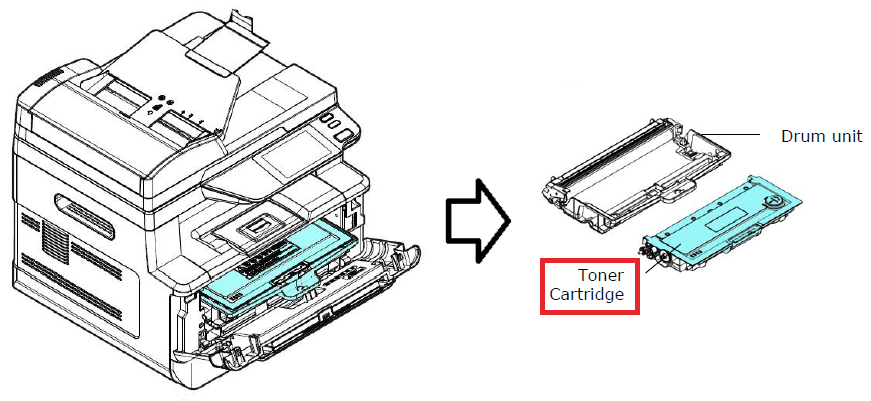
    3. Replace toner unit. <Video Link>

  • User Check

    1. Replace drum unit. <Video Link>

  • User Check

    1. 4. Replace toner unit. <Video Link>

  • User Check

    1. The problem could be disappeared after printing a few pages.
    2. Replace drum unit. <Video Link>

  • User Check

    1. Check the operating environment. High temperature and high humidity or low temperature and low humidity conditions can cause this problem.
    2. Replace toner unit. <Video Link>

  • User Check

    1. Check the operating environment. High temperature and high humidity or low temperature and low humidity conditions can cause this problem.
    2. Replace toner unit. <Video Link>

  • User Check

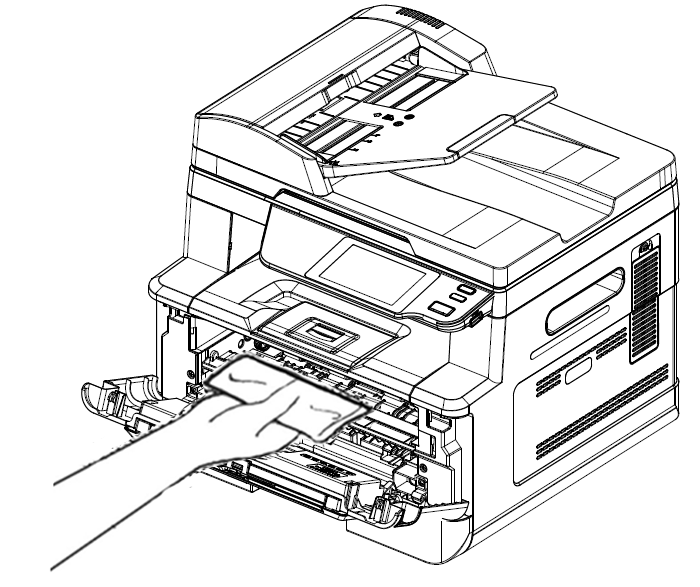
    1. There is dirt on the printer internal. wipe off the dirt on the paper path or roller.

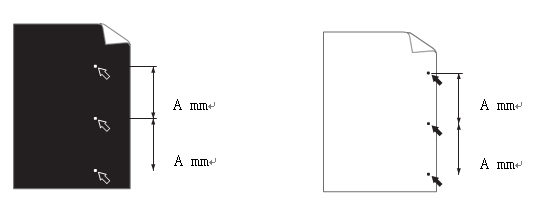
    2. Check whether fixed distance of the dust on the paper and measure it, 33.1 mm is toner issue and 75.4 mm is drum issue, confirm and judge which one need to be replace.

    3. Replace drum unit. <Video Link>

    4. Replace toner unit. <Video Link>

  • User Check

    1. There is dirt on the printer internal. wipe off the dirt on the paper path or roller.

    2. Check whether fixed distance of the dust on the paper and measure it, 33.1 mm is toner issue and 75.4 mm is drum issue, confirm and judge which one need to be replace.

    3. Replace drum unit. <Video Link>


    4. Replace toner unit. <Video Link>

  • This image has an empty alt attribute; its file name is image-15.png

    User Check

    1. The problem may disappear after printing a few pages.
    2. Check whether fixed distance of the dust on the paper and measure it, 33.1 mm is toner issue and 75.4 mm is drum issue, confirm and judge which one need to be replace.

    3. Replace drum unit. <Video Link>

    4. Replace toner unit. <Video Link>

    5. There is dirt on the printer internal. wipe off the dirt.

  • This image has an empty alt attribute; its file name is image-28.png

    User Check

    1. Check the environment. High or low temperature/humidity may cause the problem.
    2. Clean the charge wire or the power grid of the drum unit.
    Slide the corona wire to the end and then back to the original place. Repeat this for at least 3 times

    3. Replace drum unit. <Video Link>

  • User Check

    1. Clean the charge wire or the power grid of the drum unit.
    Slide the charge wire to the end and then back to the original place. Repeat this for at least 3 times

    2. This problem will disappear after printing for a few pages.
    3. Replace drum unit. <Video Link>

    4. Replace toner unit. <Video Link>

    5. There is dirt on the printer internal. wipe off the dirt on the paper path or roller.

  • User Check

    1. Please try to restart the printer or MFP.

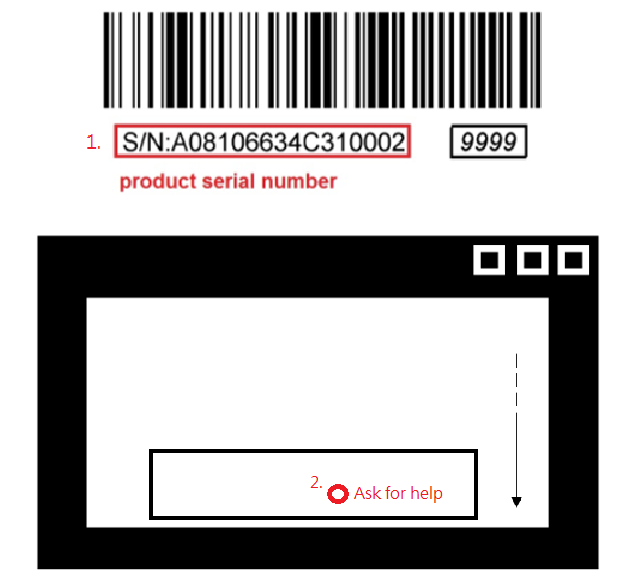
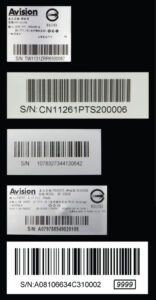
    2. If the problem still happen, please kindly check the serial number on your scanner label first, then click the following "Ask to help" option to full the form then feedback to us, thanks.

  • User Check

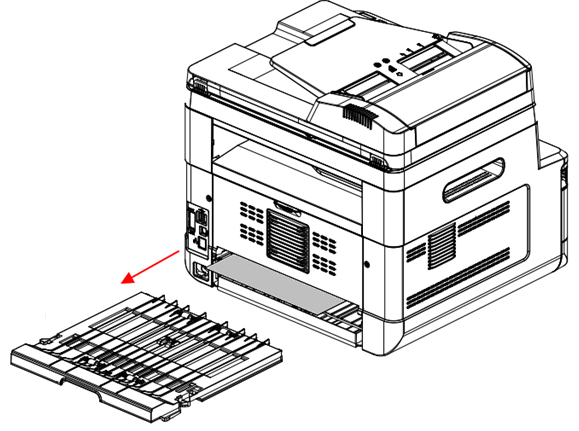
    1. Take out the duplex unit.

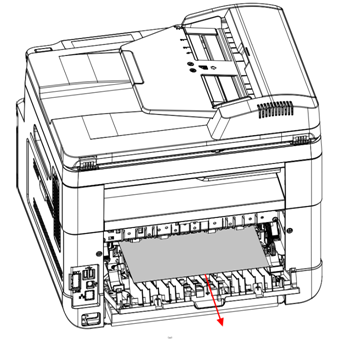
    2. And open the rear cover to remove the jammed paper.

    3. Close the cover to try again.

    <Video Link>

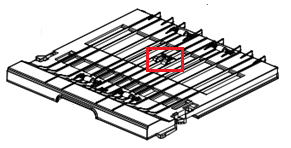
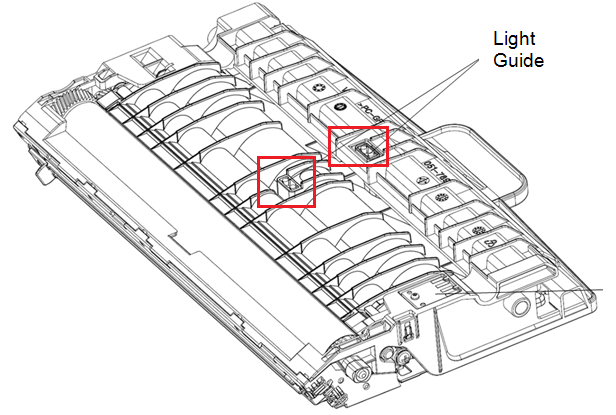
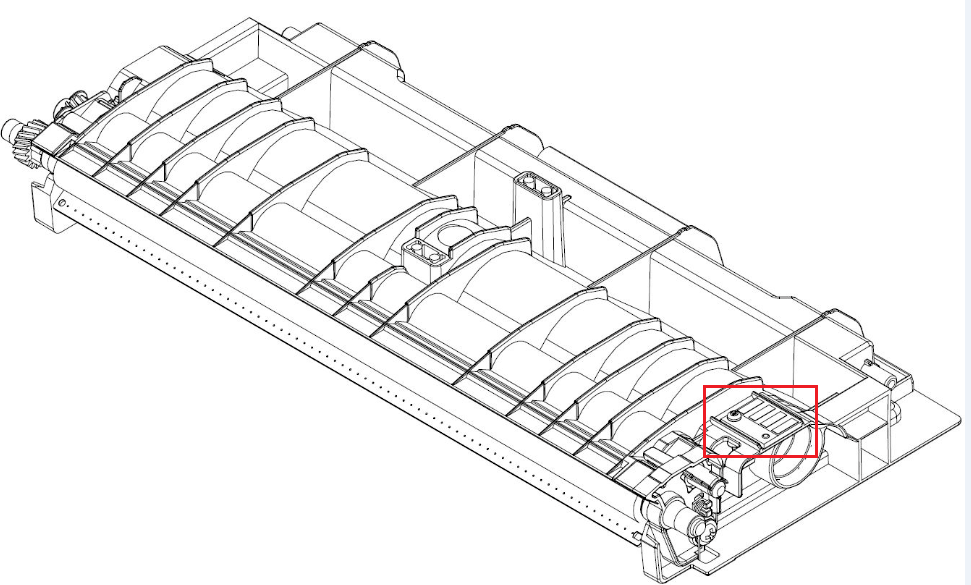
    4. Or else try to clean the light guide pillar of duplex tray.

  • User Check

    1. This problem may be solved after printing a few pages.
    2. There is dirt on the printer internal. wipe off the dirt on the paper path or roller.

  • User Check

    1. Check the environment. High or low temperature/humidity may cause the problem.
    2. Replace drum unit. <Video Link>

    3. Replace toner unit. <Video Link>

  • User Check

    1. Please ensure you had replaced the toner cartridge from original manufacturer. <Video Link>

  • User Check

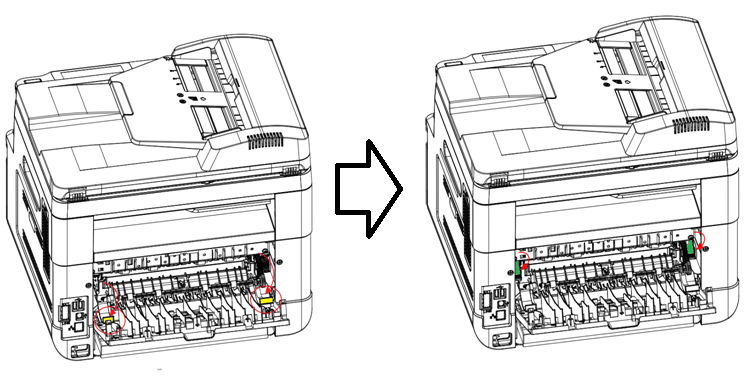
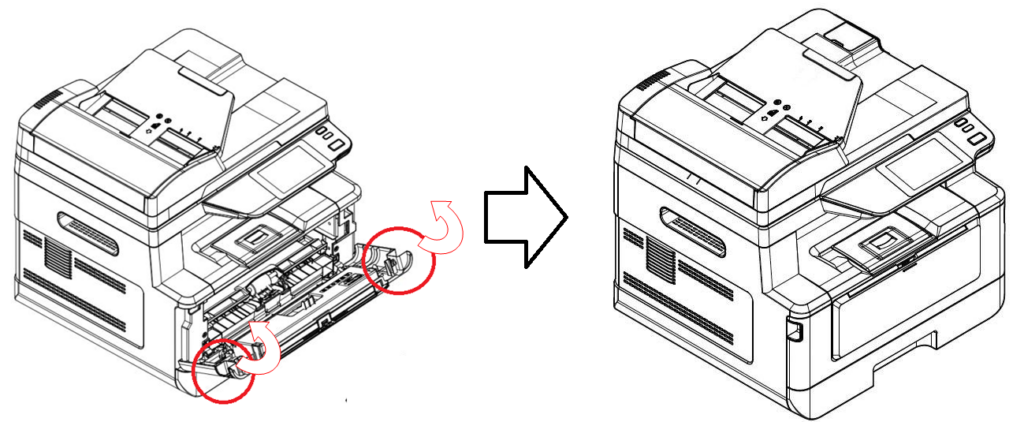
    1. Open rear cover to pull down the paper path & green arm of the both side.

    2. Remove the jammed paper and ensure this position without any foreign obgects.

    3. Reverse order the paper path & green arm of the both side then close the rear cover then try again.

    <Video Link>

  • User Check

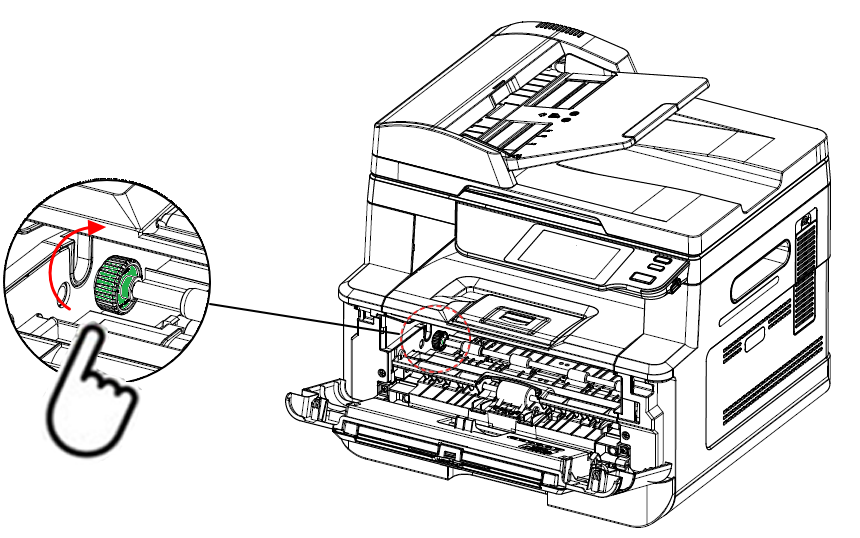
    1. Open front cover and remove the drum unit to confirm the jammed paper.

    2. Check if there are the jammed paper, rotate the green release wheel to take the paper back way, also check if there is any foreign object on the paper path..

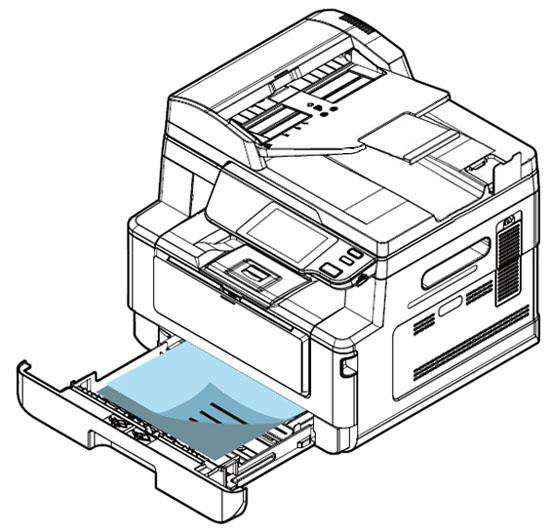
    3. Then open the main tray to remove the jam paper.

    5. Close the main tray and return the drum unit then close the front cover to try again.

    <Video Link>

    6. Check if the light guide pillar of the drum unit is contaminated by clean cotton swab to wipe with isopropyl alcohol.

  • User Check

    1. Open front cover and remove the drum unit to confirm the jammed paper.

    2. Check if there are the jammed paper, rotate the green release wheel to take the paper back way, also check if there is any foreign object on the paper path..

    3. Then open the main tray to remove the jam paper.

    5. Close the main tray and return the drum unit then close the front cover to try again.

    <Video Link>

    6. Check if the light guide pillar of the drum unit is contaminated by clean cotton swab to wipe with isopropyl alcohol.

  • User Check

    1. Clean the corona wire or the power grid of the drum unit.
    Slide the corona wire to the end and then back to the original place. Repeat this for at least 3 times

    2. If the problem still happen, try to replace drum unit. <Video Link>

  • User Check

    1. Clean the corona wire or the power grid of the drum unit.
    Slide the corona wire to the end and then back to the original place. Repeat this for at least 3 times

    2. If the problem still happen, try to replace drum unit. <Video Link>

  • User Check

    1. If the printer has been evenly positioned.
    2. Replace drum unit. <Video Link>

  • This image has an empty alt attribute; its file name is image-34.png

    User Check

    1. Check the environment. High or low temperature/humidity may cause the problem.
    2. Check if the paper is damp.
    3. Replace drum unit. <Video Link>

    4. Replace toner unit. <Video Link>

  • User Check

    1. Clean the corona wire or the power grid of the drum unit.
    Slide the corona wire to the end and then back to the original place. Repeat this for at least 3 times

    2. This problem will disappear after printing for a few pages.
    3. Replace drum unit. <Video Link>

    4. Replace toner unit. <Video Link>

  • User Check

    1. Clean the corona wire or the power grid of the drum unit.
    Slide the corona wire to the end and then back to the original place. Repeat this for at least 3 times

    2. This problem will disappear after printing for a few pages.
    3. Replace drum unit. <Video Link>

  • User Check

    1. Clean the corona wire or the power grid of the drum unit.
    Slide the corona wire to the end and then back to the original place. repeat this for at least 3 times

    2. This problem will disappear after printing for a few pages.
    3. Replace drum unit. <Video Link>

  • User Check

    1. Clean the corona wire or the power grid of the drum unit.
    Slide the corona wire to the end and then back to the original place. Repeat this for at least 3 times

    2. If the problem still happen, try to replace drum unit. <Video Link>

  • This image has an empty alt attribute; its file name is image-27.png

    User Check

    1. Check the environment. High or low temperature/humidity may cause the problem.
    2. Clean the corona wire or the power grid of the drum unit.
    Slide the corona wire to the end and then back to the original place. Repeat this for at least 3 times

    3. Replace drum unit. <Video Link>

    4. Replace toner unit. <Video Link>

  • User Check

    1. Check If there is toner cartridge installed in the printer or not.

    2. Check wether the connecting golden finger of drum had dirt and clean by eraser to wipe.

  • User Check

    1. Open front cover and remove the drum unit to confirm the jammed paper.

    2. Or open the main tray to remove the jam paper.


    3. Check if there is any foreign object on the paper path.

    <Video Link>
    4. Check if the light guide pillar of the drum unit is contaminated by clean cotton swab to wipe with isopropyl alcohol (95%).

  • User Check

    1. Please replace the toner cartridge. <Video Link>

  • User Check

    1. Need to prepare a new toner cartridge for replace when the current toner cartridge life end. <Video Link>

  • User Check

    1. Please ensure you had replaced the toner cartridge from original manufacturer. <Video Link>

  • User Check

    1. Need to prepare a new drum unit for replace when the current drum life end.

    <Video Link>

  • User Check

    1. Check If there is drum unit installed in the printer or not.

    <Video Link>

  • User Check

    1. Check whether happen both on PC print and copy function.
    2. If it happen only on copy function, check your original document image.

  • User Check

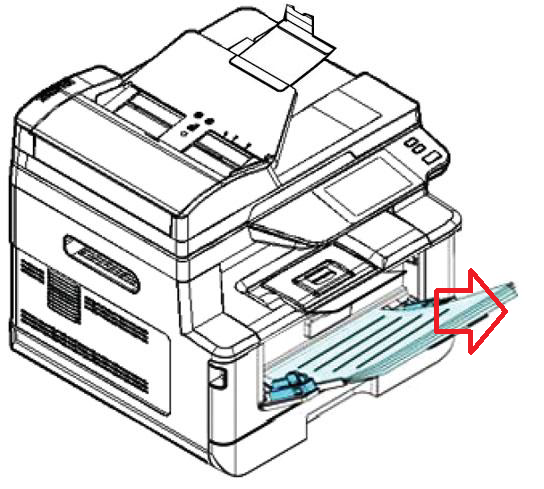
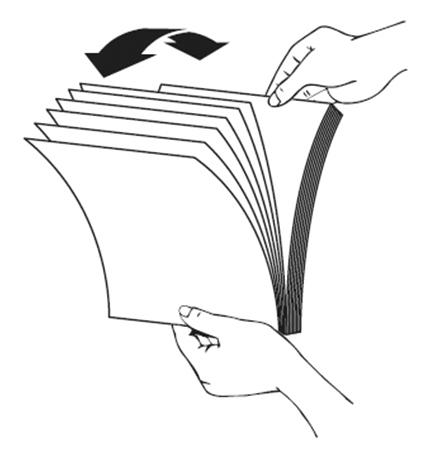
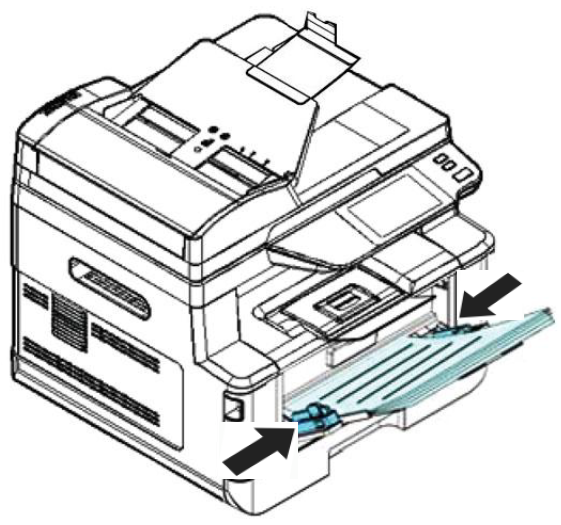
    1. Pick up the jam paper on manual tray.

    2. Confirm to fan and sort the paper to put it on the tray again

    <Video Link>

  • User Check

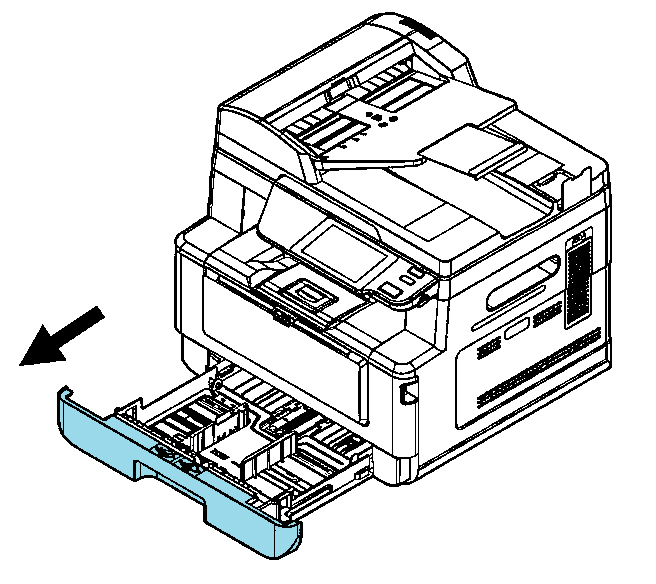
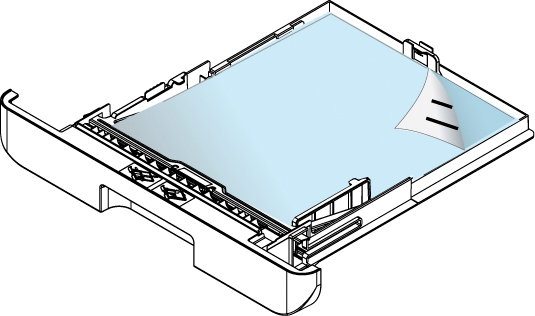
    1. Open the main tray and removal the jam paper


    2. Reset the paper as well in tray

    3. Close the main tray to try again.
    <Video Link>

  • User Check

    1. Please try to restart the MFP.

    2. Replace the drum unit. <Video Link>

  • User Check

    1. Please ensure you had replaced the drum unit from the original manufacturer.

    <Video Link>

  • User Check

    1. Replace the drum unit.

    <Video Link>

  • User Check

    1. No paper on the main tray, please load the paper to main tray.

  • User Check

    1. Please try to restart the printer or MFP.

    2. If the problem still happen, please kindly check the serial number on your scanner label first, then click the following "Ask to help" option to full the form then feedback to us, thanks.

  • User Check

    1. Check the operating environment. High temperature and high humidity or low temperature and low humidity conditions can cause this problem.
    2. Check if the paper is damp.

  • User Check

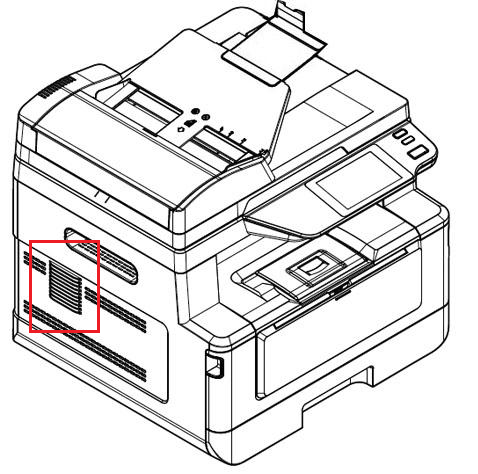
    1. Confirm whther there are someting insert to the fan on vent position to make the fan rotation fail.

  • User Check

    1. Open front cover and remove the drum unit to confirm the jammed paper.

    2. Or open the main tray to remove the jam paper.


    3. Check if there is any foreign object on the paper path.

    <Video Link>
    4. Check if the light guide pillar of the drum unit is contaminated by clean cotton swab to wipe with isopropyl alcohol (95%).

  • User Check

    1. No paper on the manual tray, please load the paper to manual tray.

  • User Check

    1. Check whether the rear cover actually close well when you print by duplex.

  • User Check

    1. Check whether the front cover actually close well.

  • User Check

    1. Please try to restart the printer or MFP.

    2. If the problem still happen, please kindly check the serial number on your scanner label first, then click the following "Ask to help" option to full the form then feedback to us, thanks.

  • User Check.

    1. Open front cover and remove the drum unit to remove the jammed paper.

    2. Or open the main tray to remove the jam paper.


    3. Check if there is any foreign object on the paper path.

    <Video Link>
    4. Check if the light guide of the drum unit is contaminated by clean cotton swab to wipe with isopropyl alcohol (95%).

  • User Check

    1. Take out the duplex unit.

    2. And open the main tray to remove the jammed paper.

    3. Close the main tray then set the duplex unit to try again.

    <Video Link>

  • User Check

    1. Please try to restart the printer or MFP.

    2. If the problem still happen, please kindly check the serial number on your scanner label first, then click the following "Ask to help" option to full the form then feedback to us, thanks.

  • User Check

    1. Please try to restart the printer or MFP.

    2. If the problem still happen, please kindly check the serial number on your scanner label first, then click the following "Ask to help" option to full the form then feedback to us, thanks.

  • User Check

    1. Please try to restart the printer or MFP.

    2. If the problem still happen, please kindly check the serial number on your scanner label first, then click the following "Ask to help" option to full the form then feedback to us, thanks.

  • User Check

    1. Please try to restart the printer or MFP.

    2. If the problem still happen, please kindly check the serial number on your scanner label first, then click the following "Ask to help" option to full the form then feedback to us, thanks.

  • User Check

    1. Open front cover and remove the drum unit to confirm the jammed paper.

    2. Check if there are the jammed paper, rotate the green release wheel to take the paper back way, also check if there is any foreign object on the paper path..

    3. Then open the main tray to remove the jam paper.

    5. Close the main tray and return the drum unit then close the front cover to try again.

    <Video Link>

    6. Check if the light guide pillar of the drum unit is contaminated by clean cotton swab to wipe with isopropyl alcohol.

  • User Check

    1. Open rear cover to pull down the paper path & green arm of the both side.

    2. Remove the jammed paper and ensure this position without any foreign obgects.

    3. Reverse order the paper path & green arm of the both side then close the rear cover then try again.

    <Video Link>

  • User Check

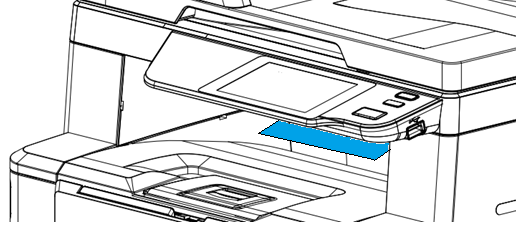
    1. Removal the Jam from exit position to try again.

    2. Open the rear cover to check whether there are others paper.

    <Video Link>

  • User Check

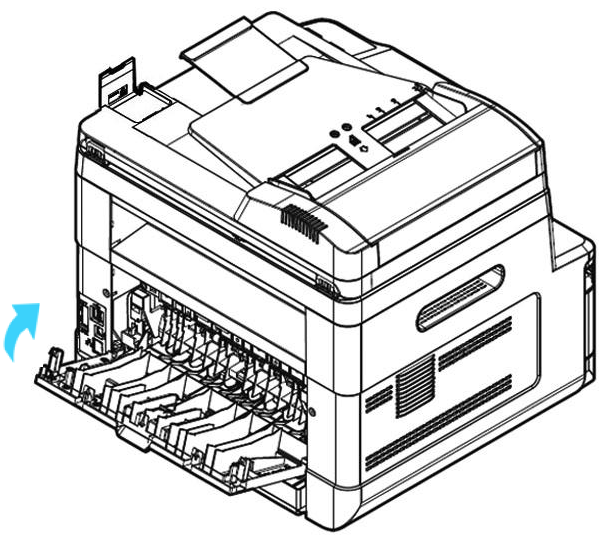
    1. Open the rear cover to remove the jammed paper.

    2. Close the cover to try again.

    <Video Link>

  • User Check

    1. Please try to restart the printer or MFP.

    2. If the problem still happen, please kindly check the serial number on your scanner label first, then click the following "Ask to help" option to full the form then feedback to us, thanks.


  • User Check

    1. Please try to restart the printer or MFP.

    2. If the problem still happen, please kindly check the serial number on your scanner label first, then click the following "Ask to help" option to full the form then feedback to us, thanks.

  • User Check

    1. Please try to restart the printer or MFP.

    2. If the problem still happen, please kindly check the serial number on your scanner label first, then click the following "Ask to help" option to full the form then feedback to us, thanks.


  • User Check

    1. Please try to restart the printer or MFP.

    2. If the problem still happen, please kindly check the serial number on your scanner label first, then click the following "Ask to help" option to full the form then feedback to us, thanks.


  • User Check

    1. Please try to restart the printer or MFP.

    2. If the problem still happen, please kindly check the serial number on your scanner label first, then click the following "Ask to help" option to full the form then feedback to us, thanks.

  • User Check

    1. Please try to restart the printer or MFP.

    2. If the problem still happen, please kindly check the serial number on your scanner label first, then click the following "Ask to help" option to full the form then feedback to us, thanks.


×
×

Cart

Select at least 2 products
to compare